Hopkins 1883 Map Help
- In order to see all the plats on this atlas, you will need to zoom into the map.
- Do so by using the scroll wheel on your mouse.
- Alternatively, you can click on the plus/minus icons on the upper left of the map.
-
The satellite atlas map view can be rotated by:
Selecting the satellite view , selecting the 3D view
- The opacity of the overlay can be adjusted with slider in the lower left corner

- Clicking on the atlas icons Brick
 , Frame
  , Land
  will bring up info on that point.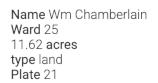
- Adjacent atlas plates are shown as blue circles with Plate numbers

showing links to georeferenced plate and original image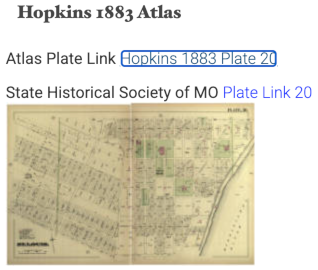
- To get the coordinates of any point you can right-click to get an info bubble which has a Google Maps link
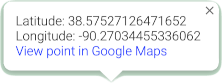 .
. - Clicking the little broken square in the upper right of the map enters full screen, which will also enlarge the map.
- To exit the full screen, just press the Escape (ESC) key on the upper far left of your keyboard.
- To move to the current GPS location of your laptop or phone you can click on the arrow icon
 . You will be asked initially to allow the interface to use your GPS location.
. - Property Points Forthcoming means the property points have not been collected yet.